
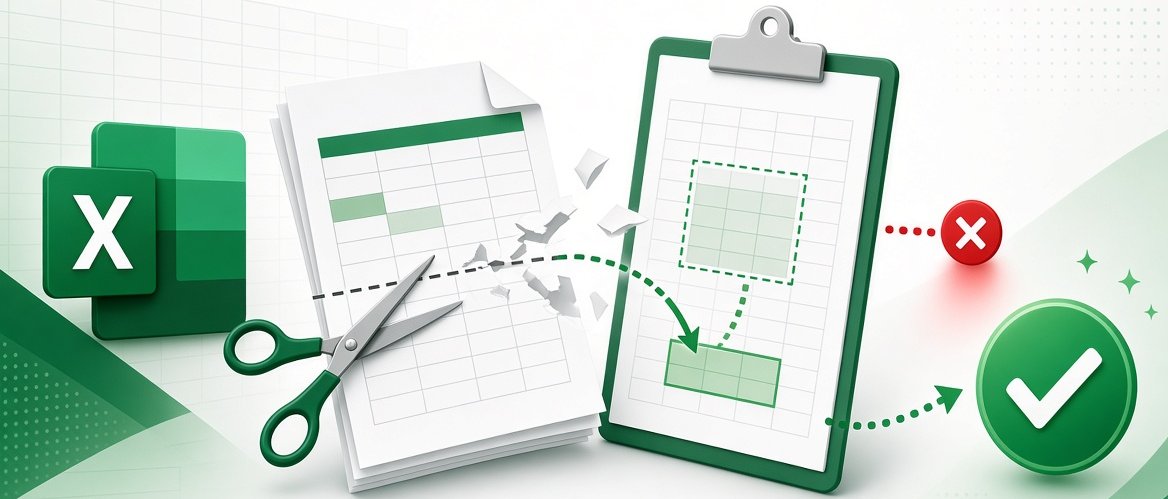
Excel Copy & Paste / Autofill Not Working After September 2026 Update (KB5002914)
Updated: 10/22/2026 at end of article with additional patch that appears to break copy/paste from the October 2026 patch releases.
Overview
Microsoft’s September 2026 Office security update KB5002914 introduced a known issue that can break basic Excel functionality. Copy-and-paste operations may fail silently (the source stays selected, the destination does not change, and Excel shows no error or warning). Autofill and formula dragging can also stop working.
This affects Excel 2016, 2019, 2021, and 2024 (both MSI and Click-to-Run installations in reported cases).
Resolution for Excel 2016 (MSI)
Microsoft released KB5002665 to correct the problem caused by KB5002914.
- The update applies to MSI-based Office 2016 installations.
- It does not apply to Click-to-Run editions (for example, Microsoft 365 / Office 365 Home).
- Install the latest version of KB5002665 for the complete fix (an earlier revision could still have issues with workbooks that contain conditional formatting).
Download the fix from DNS Texas (32-bit / x86): excel2016-kb5002665-fullfile-x86-glb.exe
Or from the Microsoft site directly: https://www.microsoft.com/en-us/download/details.aspx?id=108833
After downloading, run the installer and restart Excel. Verify that copy-and-paste and autofill work normally. A restart is always advised, but is not required in most cases.
Temporary Workaround (All Affected Versions)
Until the appropriate fix is installed, use Paste Special:
- Copy the cells (Ctrl+C).
- Select the destination cell.
- On the Home tab, click the arrow under Paste and choose Paste Special (or press Ctrl+Alt+V).
- Choose the option you need (Formulas, Values, etc.) and click OK.
How to Check Your Office Version
- Open Excel → File → Account.
- Note the product name and whether an Update Options button is present.
- If Update Options is present → Click-to-Run.
- If it is not present → MSI.
- Click About Excel to confirm the bitness (32-bit or 64-bit).
Additional Notes
- Do not uninstall KB5002914 solely to restore paste functionality if you can apply the corrective update instead; the original update contains important security fixes.
- For Excel 2019, 2021, and 2024 (or Click-to-Run 2016), Microsoft has released updated builds or continues to recommend Paste Special until a broader fix is applied. Check Windows Update / Office updates for the latest available version for your product.
- If the problem persists after installing the appropriate update, confirm you are running the latest revision of KB5002665 (for Excel 2016 MSI) and that no conflicting add-ins are interfering.
10/22/2026 Update
We have been notified the October 2026 patch (KB5002934) also re-introduces this issue. The former hotfix for the September update does not resolve this one. You must uninstall the KB5002934 fix on the workstation manually to restore copy/paste access. While there is currently limited information on this issue, we have found this to be the fix (for now).
- Open Registry Editor on affected machine
- Navigation to the following key: HKEY_LOCAL_MACHINE\SOFTWARE\WOW6432NODE\MICROSOFT\WINDOWS\CURRENTVERSION\UNINSTALL
- Search for “5002934”, you will likely have numerous keys that start with the same GUID as it lists all the components of Microsoft Office. Click each one of these keys (ones STARTING with same name) and look for the one that contains “Security Update For Microsoft Excel 2016 (KB5002934) 32-bit Edition” (or maybe 64-bit depending on your installed version). It might look something like this:
- {90160000-0011-0000-0000-000000FF1CE}
{90160000-0011-0000-0000-000000FF1CE}.Office16.ProPlus…
{90160000-0011-0000-0000-000000FF1CE}.Office16.ProPlus…
etc.
- {90160000-0011-0000-0000-000000FF1CE}
- Once you find it, note the “Uninstall String” value, you will need the GUIDs off of this.
- Open an admin Command Prompt, run the following (replace GUIDs with yours from above, GUIDs are in the { }):
- “C:\Program Files (x86)\Common Files\Microsoft Shared\OFFICE16\Oarpmany.exe” /removereleaseinpatch “{90160000-0011-0000-0000-0000000FF1CE}” “{6E253010-EE9D-41B9-B69B-BE24F9E29040}” “1033” “0”
- Note the above data is extracted from the uninstall string you got earlier.
- No restart required once it completes, but if you get errors it means you got something wrong with the GUIDs. Took us a couple of tries to get it right. Microsoft: do better 😐
- Block KB5002934 from WSUS servers until a fix is available (if ever) – otherwise this issue will continue to haunt you.
- If you don’t have WSUS and use Windows Update, don’t for now or it will bring the patch back down!
- “C:\Program Files (x86)\Common Files\Microsoft Shared\OFFICE16\Oarpmany.exe” /removereleaseinpatch “{90160000-0011-0000-0000-0000000FF1CE}” “{6E253010-EE9D-41B9-B69B-BE24F9E29040}” “1033” “0”
NOTE: Office 2016 is no longer supported by Microsoft, updating to a newer version is recommended, if possible. Office 2016 reached end of support on October 14, 2025. That means Microsoft no longer provides security updates, non-security updates, bug fixes, or technical support for it. The October 2025 date was the final end-of-support milestone for the perpetual (MSI) versions of Office 2016 and Office 2019. On the 2016 MSI version of Excel 2016, it is still receiving post-EOL security updates at this time, which is why the copy/paste regressions have shown back up.

|
Royalty-free stock images for your websites and presentations. |
|
Secure your internet connection and protect your privacy with a trusted VPN. |

|
|
Advanced real-time malware protection to keep your devices safe. |

|